Visualizing ROS data with Foxglove
This guide explains how to export a bounded selection of raw ROS records from ReductStore as MCAP and open the result remotely in Foxglove. It expands on the workflow introduced in the ROS applications guide.
The example uses the public ROS dataset. Before you begin, you need:
- the Foxglove desktop app or Foxglove web app;
- access to the ReductStore Web Console;
- a ReductStore server with the ReductROS extension; and
- raw ROS entries with a valid
$schemaattachment containing their encoding, schema, topic, and schema name. ReductBridge writes this attachment automatically.
The Play server and its public reductstore token are shared demo resources. Do
not upload private data to this server or use the demo token for production
data.
Export records as MCAP
Open play.reduct.store, enter the public
reductstore token if prompted, and open Query. Configure the query as
follows:
- Select the
orionbucket. - Select
*under Entries. For production investigations, select only the required entries where possible. - Select Last 1 hour or another bounded time range.
- Enter this conditional query:
{
  "#ext": {
    "ros": {
      "export": {
        "format": "mcap"
      }
    }
  }
}
- Select Fetch Records.
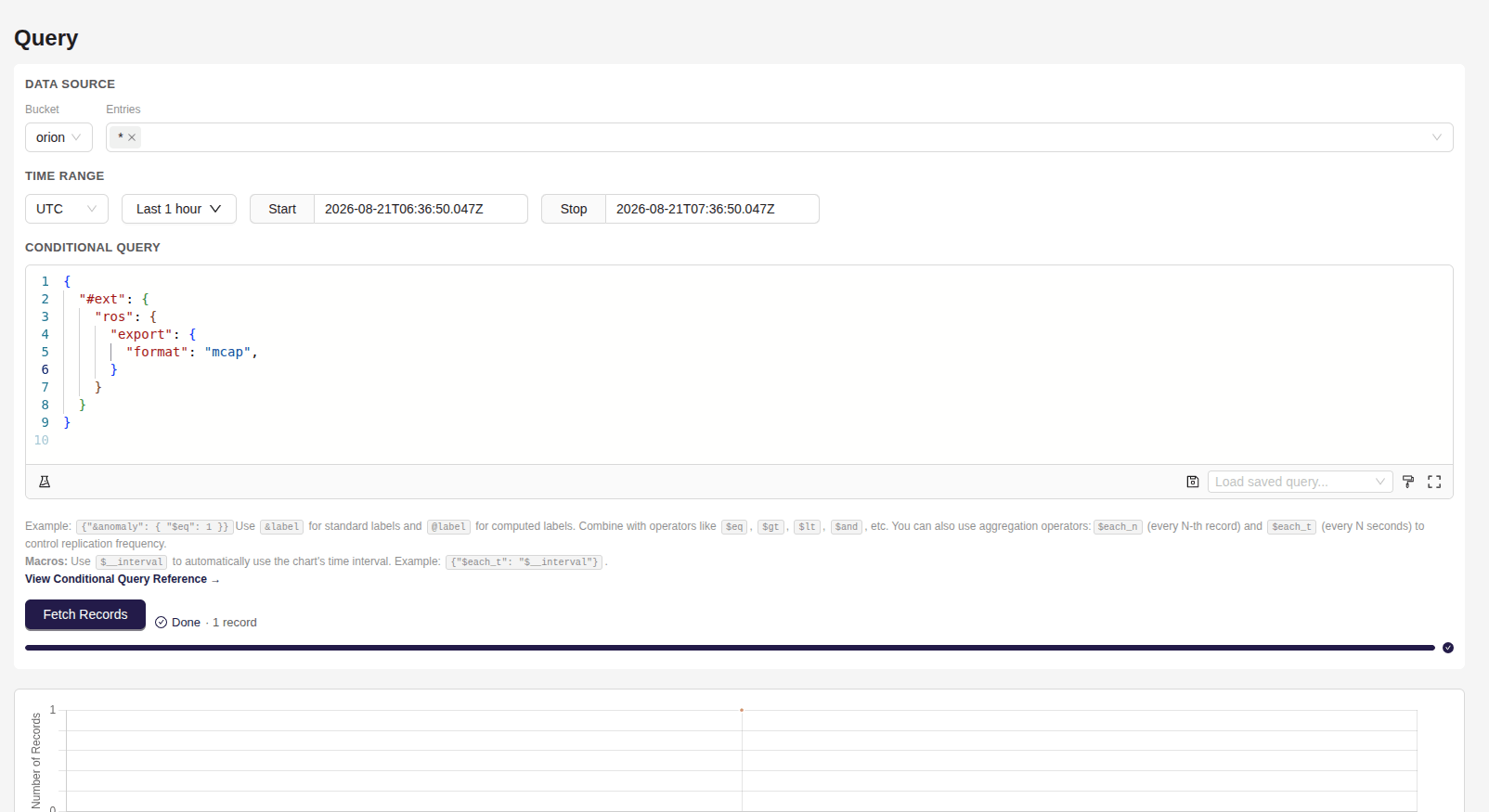
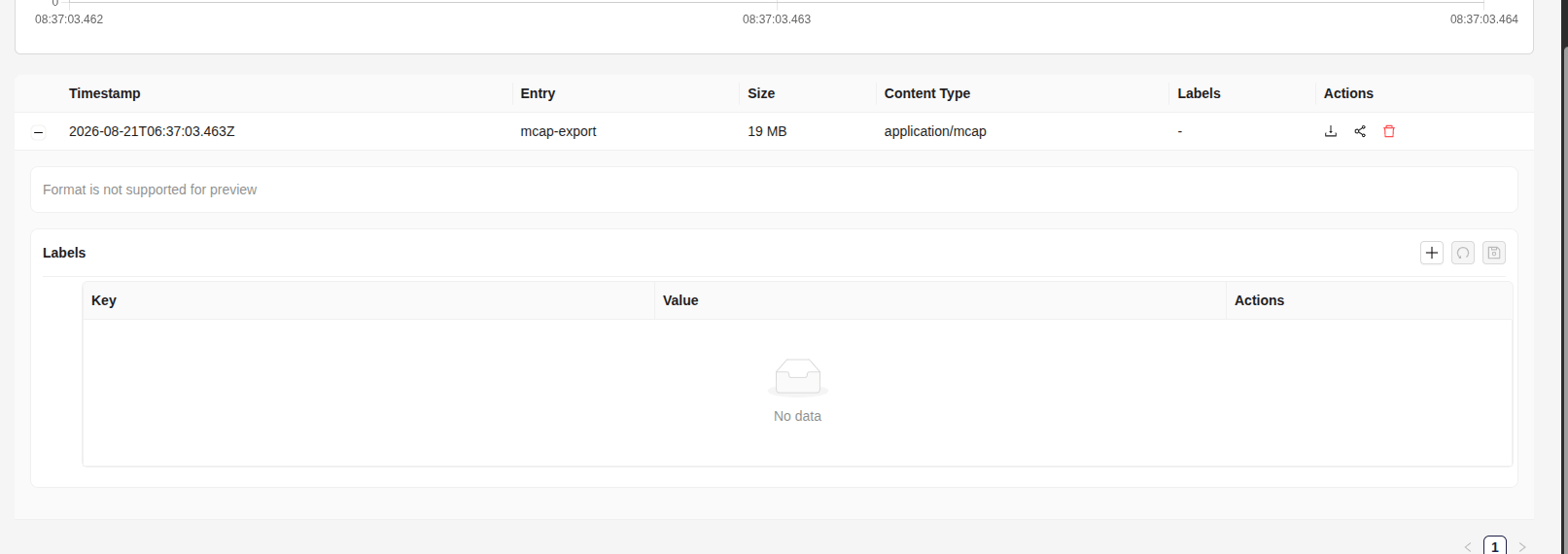
ReductROS reads the $schema attachment for each selected entry, restores its
ROS topic and schema, orders the messages by timestamp, and returns an
application/mcap result named mcap-export. The MCAP result is generated by
the query on demand; it is not stored as a new record in the source bucket.
Limit large exports
For a wider query range, use the optional duration and size limits to split
the output into manageable episodes:
{
  "#ext": {
    "ros": {
      "export": {
        "format": "mcap",
        "duration": "1h",
        "size": "500MB"
      }
    }
  }
}
A new episode starts when either threshold is reached. See Exporting raw messages as MCAP for the authoritative parameter reference.
Create a temporary query link
In the mcap-export result row, select Share record. Choose the shortest
practical expiry, retain a filename ending in .mcap, and select
Generate Link.

The Web Console copies the generated URL automatically when clipboard access is available. The dialog also provides a Copy action.

The link applies the saved query again when it is accessed and resolves the selected output record. It does not point to a persisted export. See the Query Link API for details.
Anyone with the URL can read the query result without an API token until the link expires. Treat it as a temporary credential, and do not publish or forward it unnecessarily.
If the export returns multiple episodes, create a link for each output record. Foxglove accepts multiple remote URLs when they are entered one per line.
Open the export in Foxglove
In Foxglove:
- Open a new connection.
- Select Remote files.
- Paste the ReductStore query link into Remote file URL(s).
- Select Open.
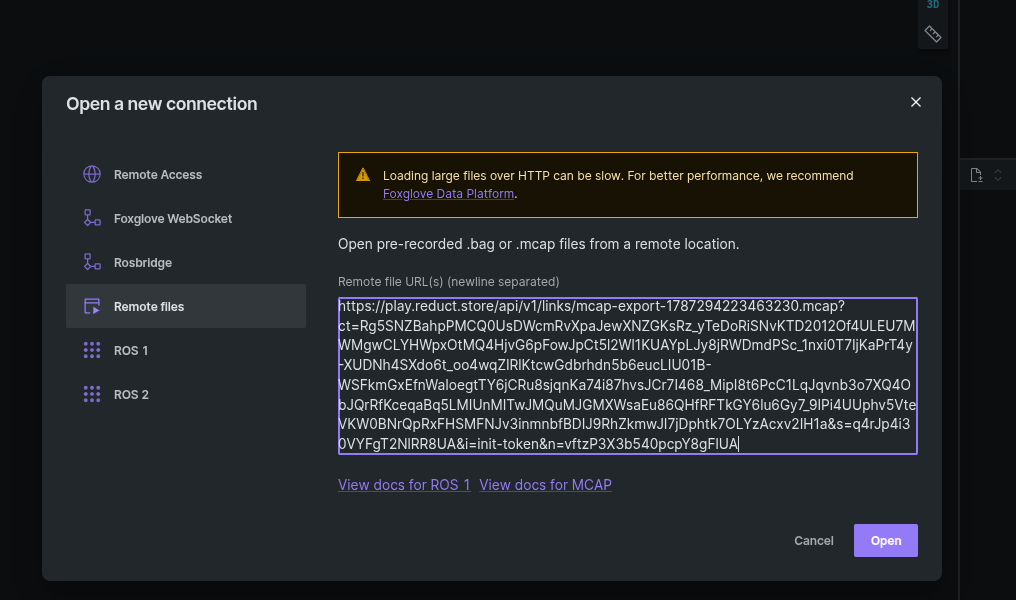
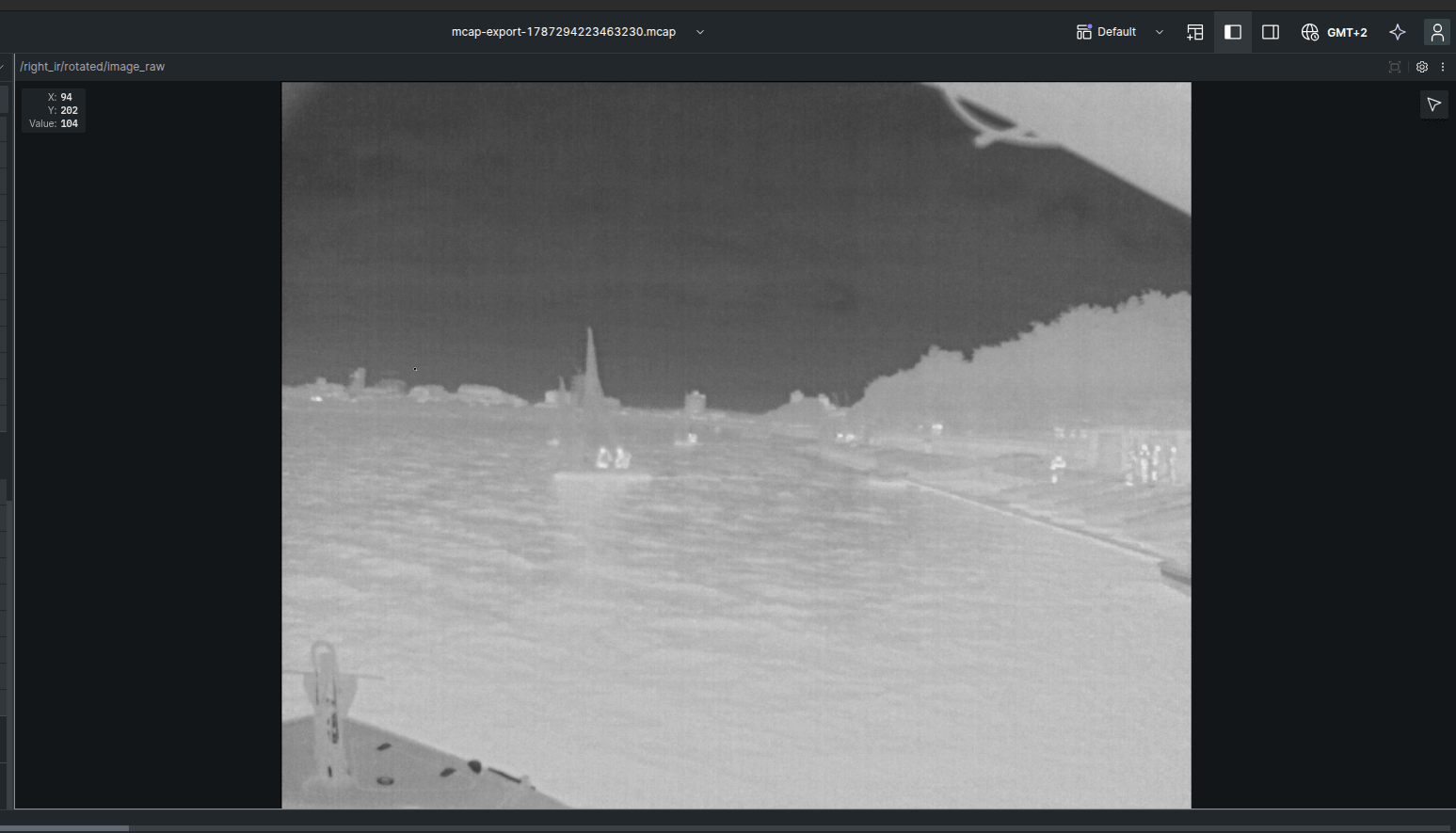
Foxglove reads the MCAP index and exposes the restored ROS topics and schemas.
Add an Image panel and select /right_ir/rotated/image_raw to inspect the
infrared camera topic.
See Foxglove's remote HTTP file documentation and Image panel documentation for connection and panel options.
Troubleshooting
- No
mcap-exportresult: Check that the selected time range contains records, ReductROS is available, and every selected entry has a valid$schemaattachment. - Topics are missing: Check the entry selection and the topic and schema
metadata stored in each entry's
$schemaattachment. - Foxglove cannot open the URL: Generate a new link if it expired, and make sure the ReductStore URL is externally reachable and supports CORS and HTTP range requests. Signed URLs should point directly to the resource because redirects can fail under CORS.
- A private deployment generates an unreachable URL: Configure
RS_PUBLIC_URLas the externally reachable ReductStore URL. See ReductStore configuration. - Playback is slow: Shorten the time range, select fewer topics, or split the
output with
durationandsize.